
Crafted by Bhadraavel Technologies LLP.

GuideWhat's newAboutPrivacyTermsRefundsDeliveryContact

© 2026 · Memorize It v1.23.0

Memorize It

What it can do

Sign in

A quiet list for the small things of a day and the dates close to the heart. You type (or say) a line the way you would say it to a person; the app works out the day, the time, the repeat and what kind of thing it is. Tap any example below to try it in your own list.

  1. 1

    Type it

    “Pay the electrician by 5pm”, “Amma's birthday 14 feb 1965”, “Gym every mon 6pm”.

  2. 2

    See your day

    Today shows what is due, what is overdue, what is coming up, and what is done.

  3. 3

    Ask it

    “When is my next electricity bill?”, “How old is my son?”, “Bills next month”.

  • Add in plain words
  • Speak it
  • Your day
  • Dates close to the heart
  • Bills and renewals
  • Calendar
  • Ask
  • Keep it right
  • All and streaks
  • Lists and sharing
  • Sticky notes
  • A morning note
  • On your phone

Add in plain words

One line in the box at the top of Today. As you type, small chips show how it was read, so a misread word is caught before you press Enter.
The day

You typeIt reads as
  • Call Amma tomorrowtomorrow (also tmrw, tmr, day after tomorrow)
  • Dentist 22 oct22 October (also oct 22, 22-10, 22/10/2026, wed 14 oct)
  • Pay rent on the 1stthe next 1st of a month
  • Gym satthis Saturday (also next sat, sat week, this weekend)
  • Service the car in 2 weeksin 2 weeks (also in 3 days, in a fortnight, next month)
  • Clear the loft end of monththe last day of this month (also eom, mid oct, early nov)

No day means today. A day that has passed this year rolls to next year.

The time

You typeIt reads as
  • Walk at 6pm6 pm (also 6pm, @6, 18:00, 6.30pm, half past 6, quarter to 7)
  • Call the bank at 1111 am; a bare 1 to 6 reads as the afternoon
  • Lunch with Ravi at noon12 pm (midnight works too)
  • Walk in the evening6 pm; morning is 9 am, afternoon 3 pm, night 9 pm

Without a time, a chore sorts as if due at 5 pm. Past its time today, it turns red.

Repeats

You typeIt reads as
  • Water the plants every daydaily (also daily, every morning at 7)
  • Gym every mon wed frithose weekdays (also every weekday, every weekend, on mondays)
  • Weekly reviewonce a week on today's weekday
  • Laundry every other weekevery 2 weeks (also fortnightly, every 3 weeks)
  • Rent on the 1st of every monthmonthly on that day (also monthly, every month starting 1 nov)
  • LIC premium quarterly from 12 octevery 3 months from that day (also half-yearly, every 2 months)
  • Pongal every 14 janevery year on that date (also yearly, annually)

Extras

You typeIt reads as
  • Call the plumber tomorrow !important: a star, and first in its day (also “important”, “urgent”)
  • Fix the shed door somedayno date; lives on the All page (also no date, whenever)
  • Passport renewal 20 nov remind 30 days beforean early reminder (also a week ahead, 3 days early)
  • remind me to buy milk tonightthe “remind me to” is dropped; the rest is read as usual

Mixed order is fine: “at 3pm on 22 oct call the bank” and “call the bank 22 oct 3pm” read the same. Dates are day first, Indian style: 2/3 is 2 March.

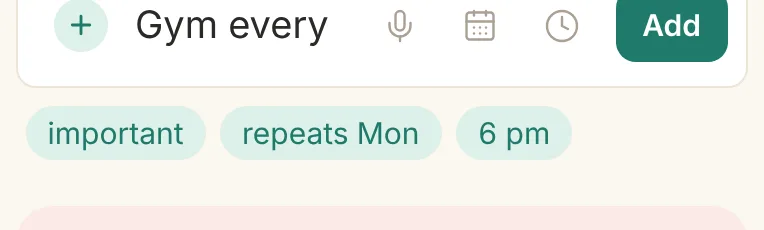
The add box with “Gym every mon 6pm !” typed and three chips below it: important, repeats Mon, 6 pm
The chips show the reading: important, repeats on Mondays, at 6 pm.
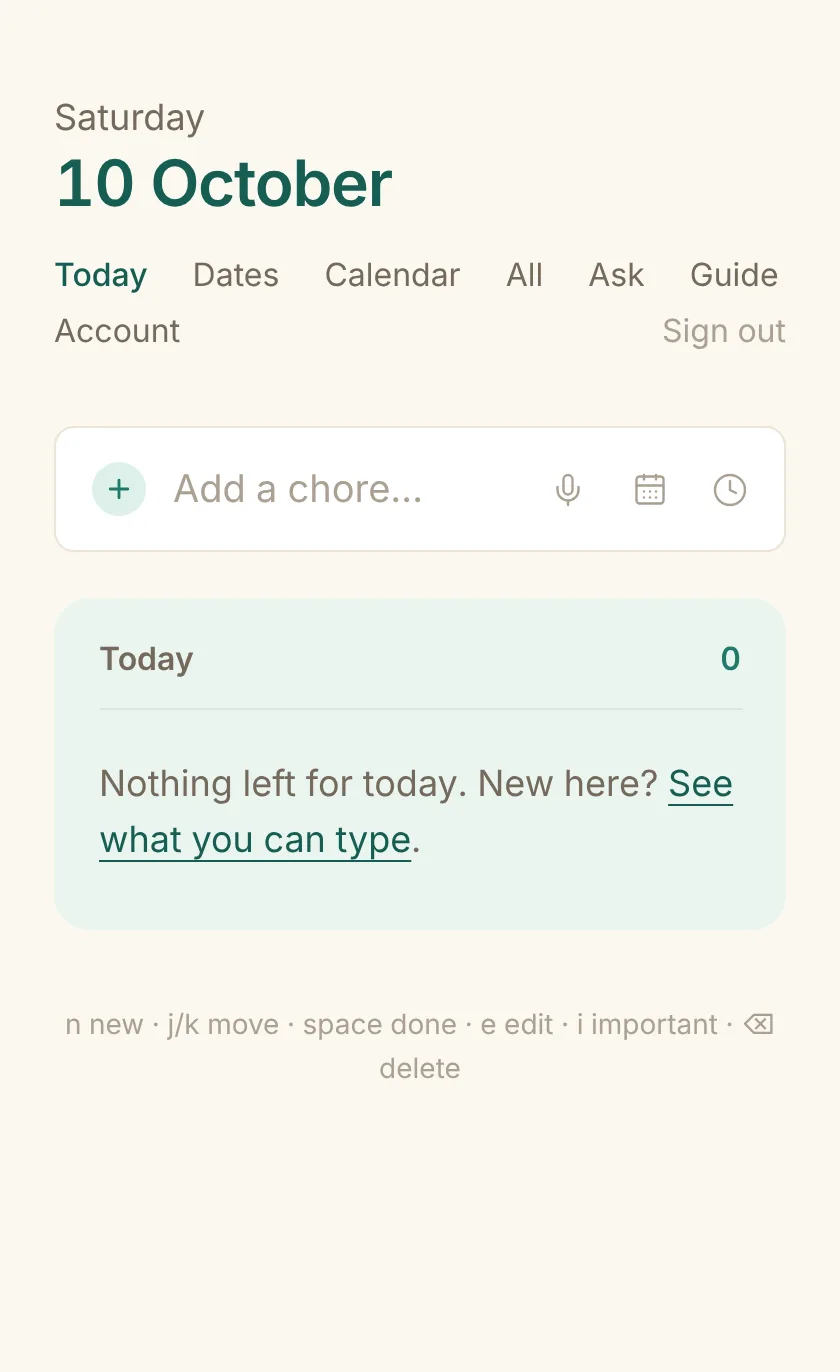
Today with nothing on it: the add box, a Today panel reading “Nothing left for today”, and the keyboard hints
Where it all starts. The calendar and clock buttons pick a day or time if you would rather not type one.

Speak it

The microphone in the add box listens through the browser's own speech recognition. Say the line the same way you would type it.
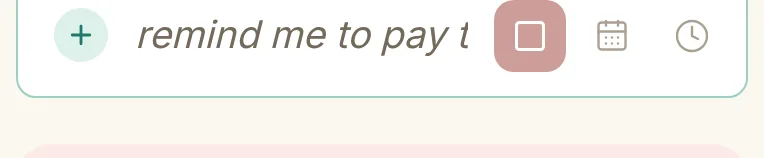
  • Tap the microphone, speak, pause. The words land in the box with the usual chips.
  • Check the chips, then tap Add. A misheard word is fixed in the box before anything is saved.
  • A spoken question (“when is my next electricity bill?”) is not added: it goes to Ask and the answer is read back aloud.
  • Needs a browser with speech recognition (Chrome, Edge, Safari) and microphone permission. Nothing is sent to this server; the browser does the hearing.
The add box while listening: the words heard so far in italics and a red stop button
Words appear as they are heard; it stops by itself after a pause, or tap the square.

Your day

Today is one column, in the order you would look at it. Tick the circle when something is done; tap again within a moment to untick.
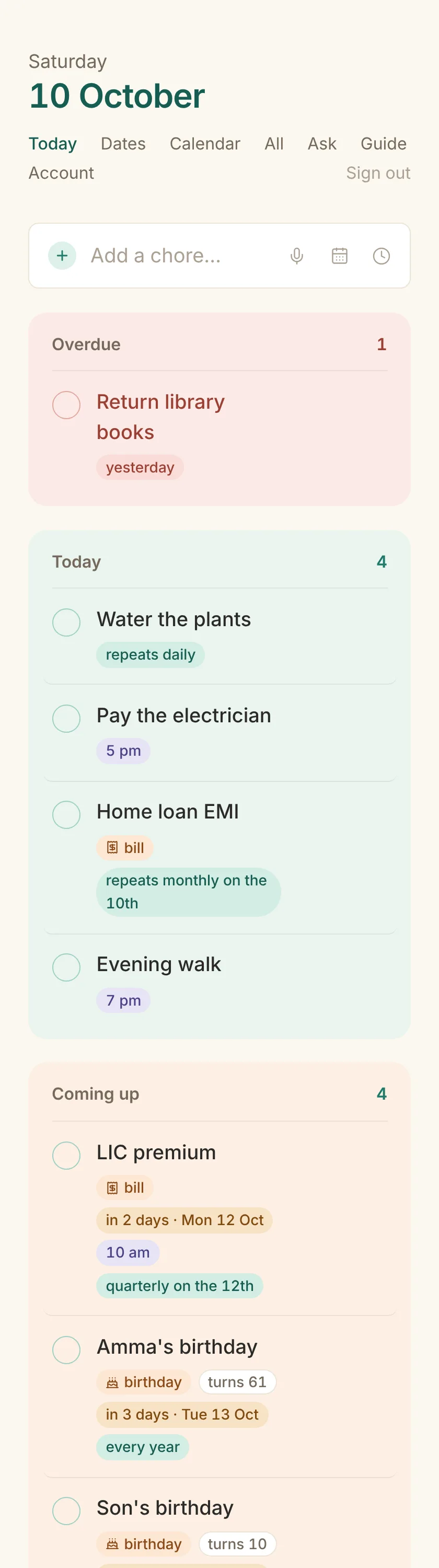
Overdue
Anything whose day has passed. In red until it is done or moved.
Today
Due today. Starred items first, then by time.
Coming up
Bills, birthdays, renewals and events inside their reminder window, with how far away they are.
Later
Plain chores scheduled for another day.
Done today
Folded away. Open it and untick one to bring it back.
Done yesterday
Yesterday's ticks, folded the same way, to untick too.

A repeating chore ticked today comes back on its next day. Ticked one by mistake? Press Undo on the small bar that appears after a tick or a delete; later, open Done today or Done yesterday and untick it. A repeating chore ticked again since keeps its latest tick: undo that one first.

The Today page with Overdue, Today, Coming up, Later and Done today panels
Five ruled sections, each with a small-capitals label. Empty ones stay out of the way.

Dates close to the heart

Birthdays, anniversaries, renewals and events are entries like any other, with a type, a yearly repeat and an early reminder. The words you use set the type.

You typeType and reminder
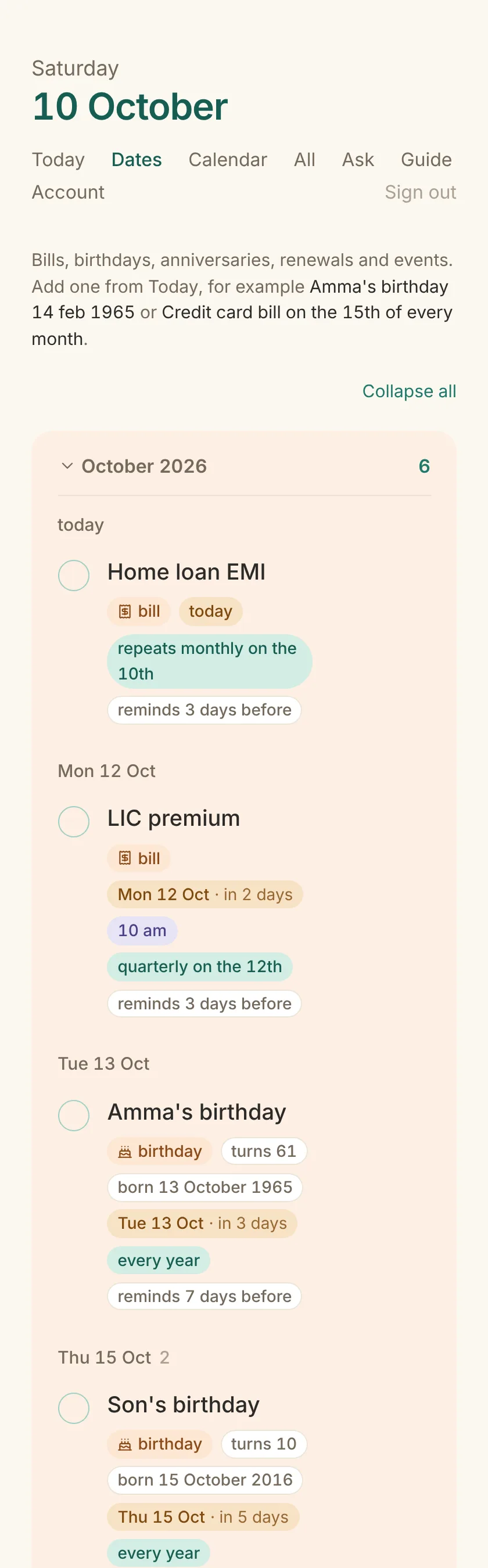
  • Amma's birthday 14 feb 1965birthday, every year, 7 days early; the year gives her age
  • Wedding anniversary 22 nov 2010anniversary, every year, 7 days early (also married, housewarming)
  • Car insurance renewal 30 octrenewal, 30 days early (also expires, subscription, licence, passport, visa, domain)
  • Diwali 8 novevent, 3 days early (also pongal, christmas, puja, exam, appointment)
  • Credit card bill on the 15th of every monthbill, 3 days early (also premium, EMI, rent, fees, tax, broadband, recharge)

Ages: “Son turns 10”

Give a birthday its year and the app says who turns what: on Today, on the Dates page and in Ask. Any of these work:
Son's birthday 12 oct 2016Ravi bday 12 oct born in 2016Appa born 2 jan 1956Dad turns 70 on 2 janMarried on 5 may 2010
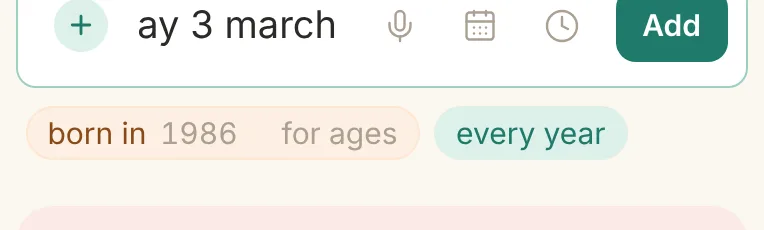
The add box after typing “my wife's birthday 3 march”, with a “born in ____ for ages” chip
No year? A small chip asks for it.
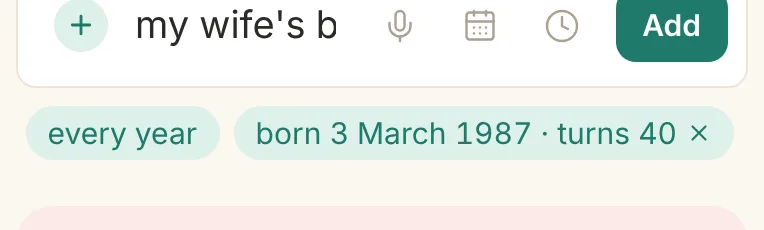
The same box after typing 1987 into the chip: it now reads “born 3 March 1987 · turns 40”
Type it and the age appears.

Forgot the year? The Dates page shows “born in ____” on the row until you fill it, and the pencil on any row opens a form with a Born in field.

The Dates page with months expanded, showing birthdays, bills and renewals with their chips
The Dates page, month by month. Each month folds to a line; tap it to open.

Bills and renewals

Monthly, quarterly, half-yearly, every so many months: say it once and the next due date keeps moving on its own. Ticking a bill marks that month's payment.

You typeIt reads as
  • Electricity bill on the 5th of every monthmonthly on the 5th
  • Home loan EMI on the 10th of every monthmonthly on the 10th, a bill
  • LIC premium quarterly from 12 octevery 3 months, counted from 12 October
  • Term insurance half-yearly from 3 novevery 6 months (also semi-annual, twice a year)
  • Water bill every 2 months starting 1 novevery second month from 1 November
  • Broadband renewal 28 oct remind 5 days beforea renewal with its own reminder window

The All page keeps the history: how many times each repeating entry was ticked, and the current streak. Ask can count them too: “how many EMI payments have I paid this year?”

Calendar

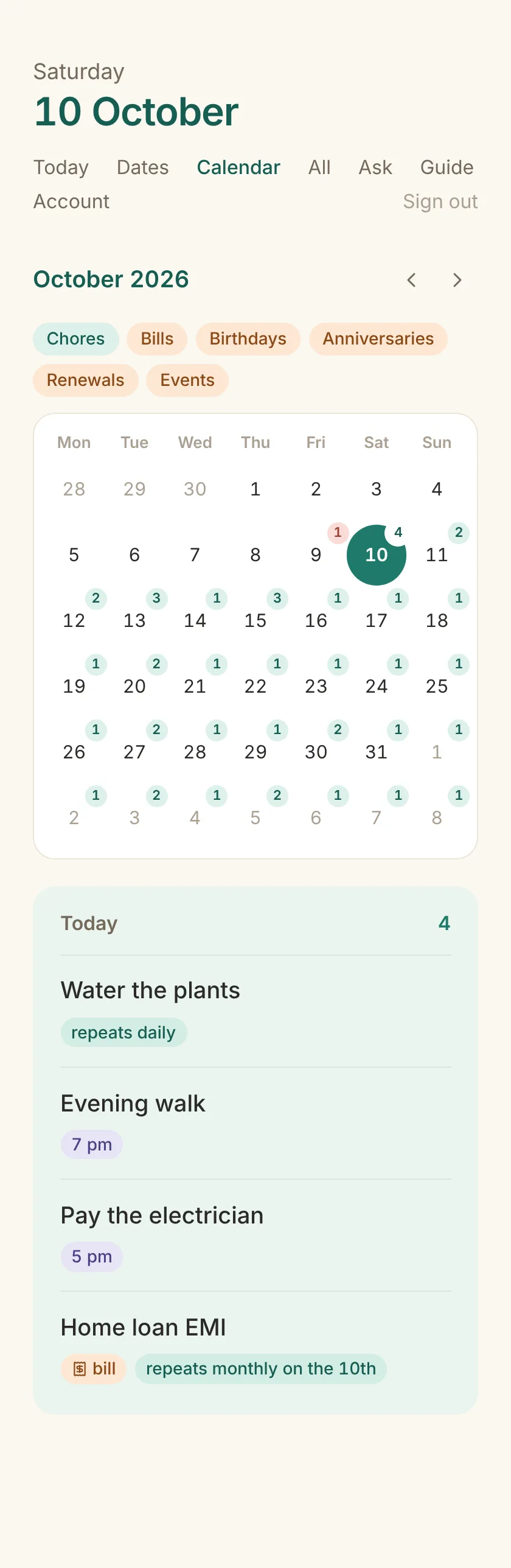
A month at a glance, with a small count on every day that has something, and the day's list underneath.
  • Give a bill its amount, “Electricity bill ₹1,250 on the 5th of every month”, or under the pencil. The row shows it, the Dates page sums the month: what is due, and what was paid when you ticked.
  • Birthdays and anniversaries kept in Google Contacts come in all at once: on the Account page, “Bring in your dates”. You see the list before anything is added.
  • Give a birthday or anniversary a phone number under its pencil, and on the day the row offers Wish on WhatsApp: one tap opens the chat with a greeting ready.
  • Starter packs on the Account page add the usual things of a vehicle, a home, your health, and the festivals and national days, in one go. Diwali, Ganesh Chaturthi and the other days that follow the moon are worked out from the panchangam for the coming year. Open the pack again and untick any to take them off your list.
  • Your holidays, also on the Account page, keeps your own named lists, from work or school, each in a colour you pick: bring one in as a calendar file, a spreadsheet or pasted lines, and rename, recolour or delete it any time; put one on a list you share and the family sees its days and can add their own. The calendar shows chores in green, festivals and public holidays in saffron, birthdays and events in rose, and each holiday list in its own colour; tap a colour above the month to hide or show it.
  • Print the year, at the top of the Dates page, lays out every date of a year on one clean sheet, in the calendar's four colours, for the fridge or the pooja room, or saves it as a PDF.
  • Tap a day to see its entries; use the arrows to move month by month. On a keyboard, ← and → do the same and t returns to this month.
  • The chips above the grid hide a type for a while: chores, bills, birthdays, renewals. Handy to see only the money, or only the people.
  • Repeating entries are projected forward, so December already shows December's bills.
The calendar page: a month grid with pale count badges, today in teal, and the selected day's entries listed below
Pale badges keep the month calm; only the selected day is strong teal.

Ask

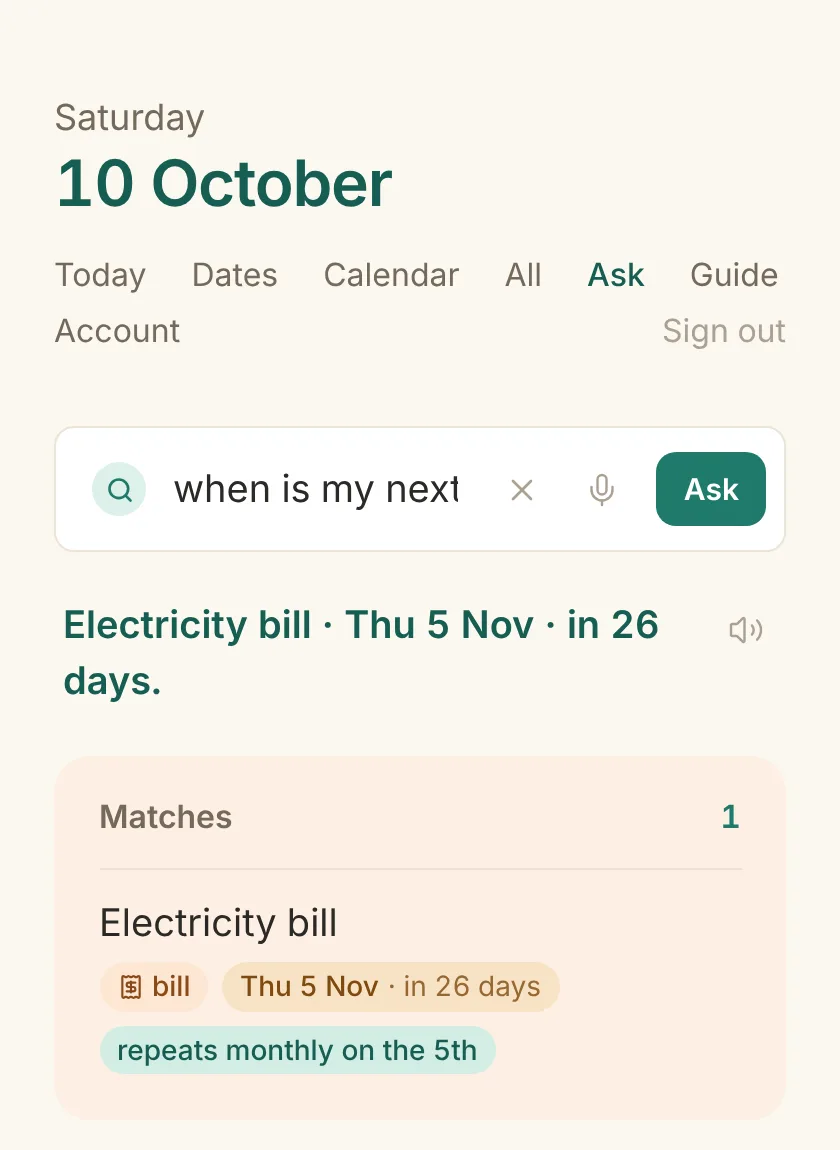
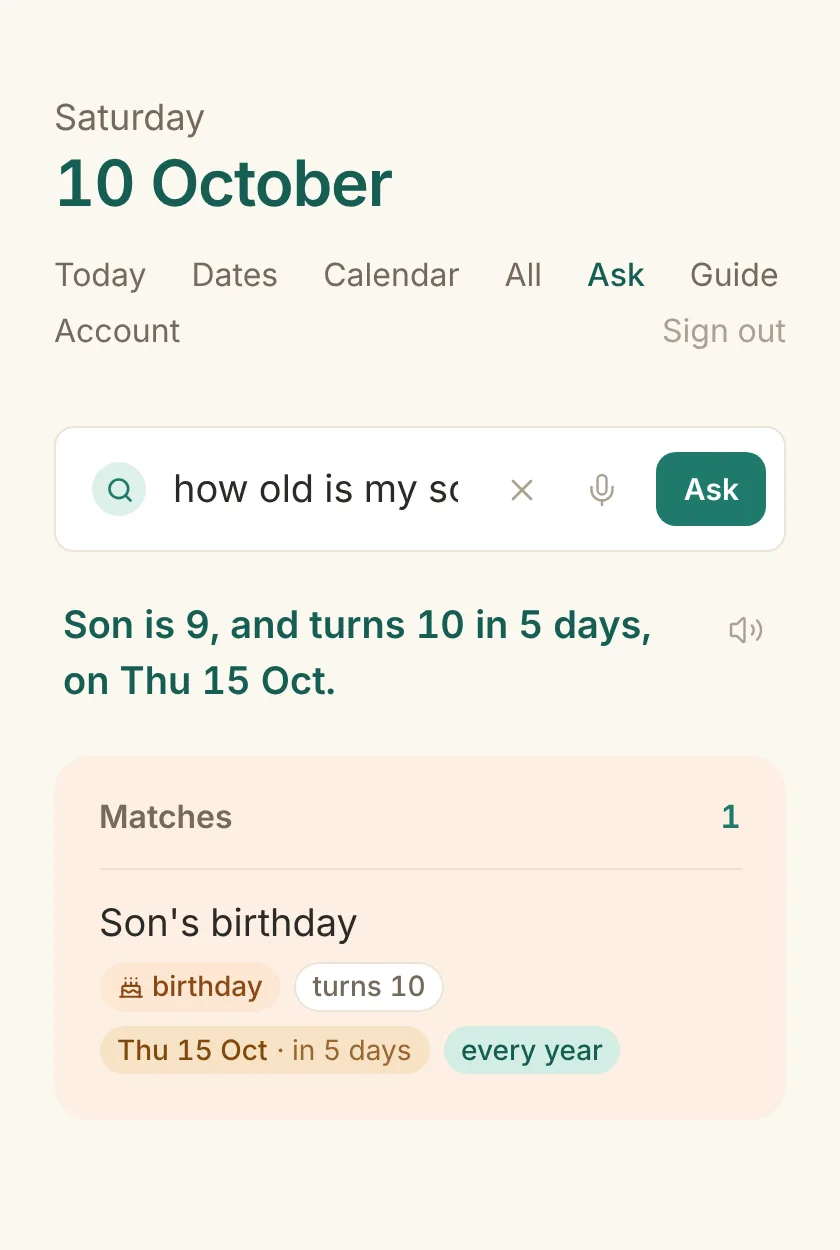
Plain questions, typed or spoken, answered from your own entries. The answer is one line with how far away it is, above the matching rows. Nothing leaves your server; there is no AI service behind it.
Try asking

When is my next electricity bill?When is my electricity bill next month?How many EMI payments are pending this year?Which bills have I paid this month?Bills in the next 30 daysBirthdays in NovemberWhen is Amma's birthday?How old is my son?Who turns 40 this year?Do I have anything tomorrow?Renewals by 15 nov

What it understands

  • When gives the next one. How many counts. Anything else lists.
  • A period: today, tomorrow, this or next week, month, year; the next 30 days; in November; by 15 Nov. Repeating bills are counted once per occurrence inside it.
  • Past tense looks back: “have I paid”, “already done”, “which chores did I do this month” use your tick history.
  • Type words (bills, birthdays, renewals) and the rest of the words match titles.
  • Spoken from the Today box, a question is answered aloud. The speaker button on an answer reads it again.
The Ask page answering “when is my next electricity bill?”: Electricity bill · Thu 5 Nov · in 26 days, with the matching row
The Ask page answering “how old is my son?”: Son is 9, and turns 10 in 5 days, on Thu 15 Oct

Keep it right

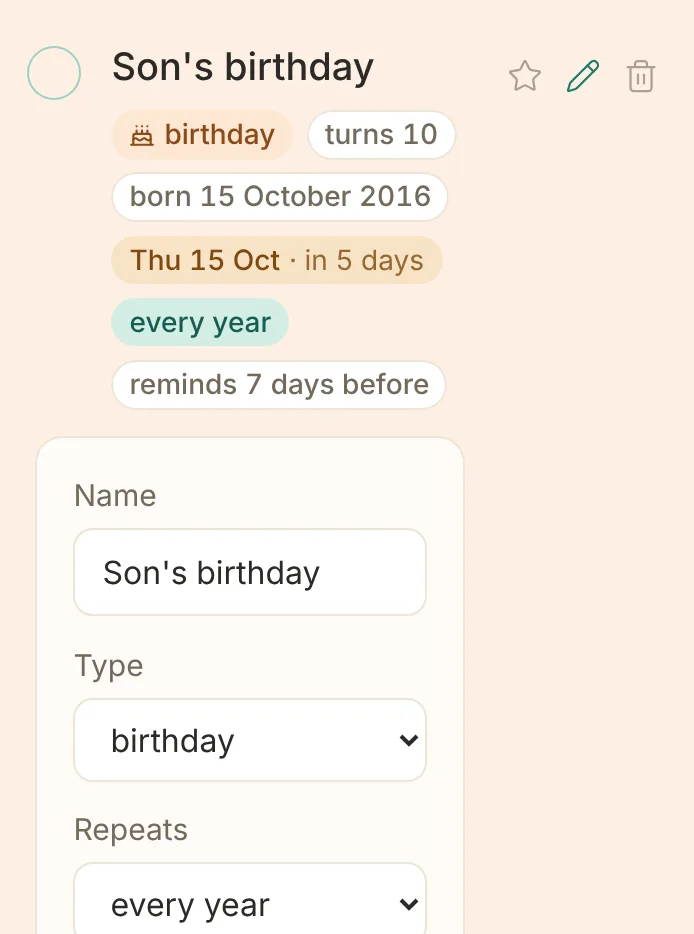
Every row has a star and a pencil. The pencil opens a form under the row: name, type, day, time, repeat, the year it began, the reminder window, and a Delete button that asks before it acts.

  • Tap the title to rename in place. The same words work there: “Bins every wed” renames and reschedules in one go.
  • The star moves an item to the top of its day. Delete lives inside the form, behind a question, so a stray tap cannot remove anything; an undo still appears afterwards.
  • The small clock is not today: tomorrow, this weekend, next week or in a month, in one tap. A repeat keeps its rule and resumes from there.
  • On a phone the buttons are always there; on a desktop they appear on hover.

Keyboard, on a desktop

nnew: focus the add box
j / k or ↑ / ↓move between rows
space or xtick the row
e or Enterrename
istar
Backspacedelete (undo appears)
A birthday row with the edit form open beneath it: Name, Type, Repeats, Next on, Time, Born in, Remind days before, and Save and Cancel buttons
Nothing changes until Save. A wrong value is refused with a sentence.

All and streaks

Everything open, in three groups: repeating, one-off, someday. Repeating entries show how often they were ticked and the current run.
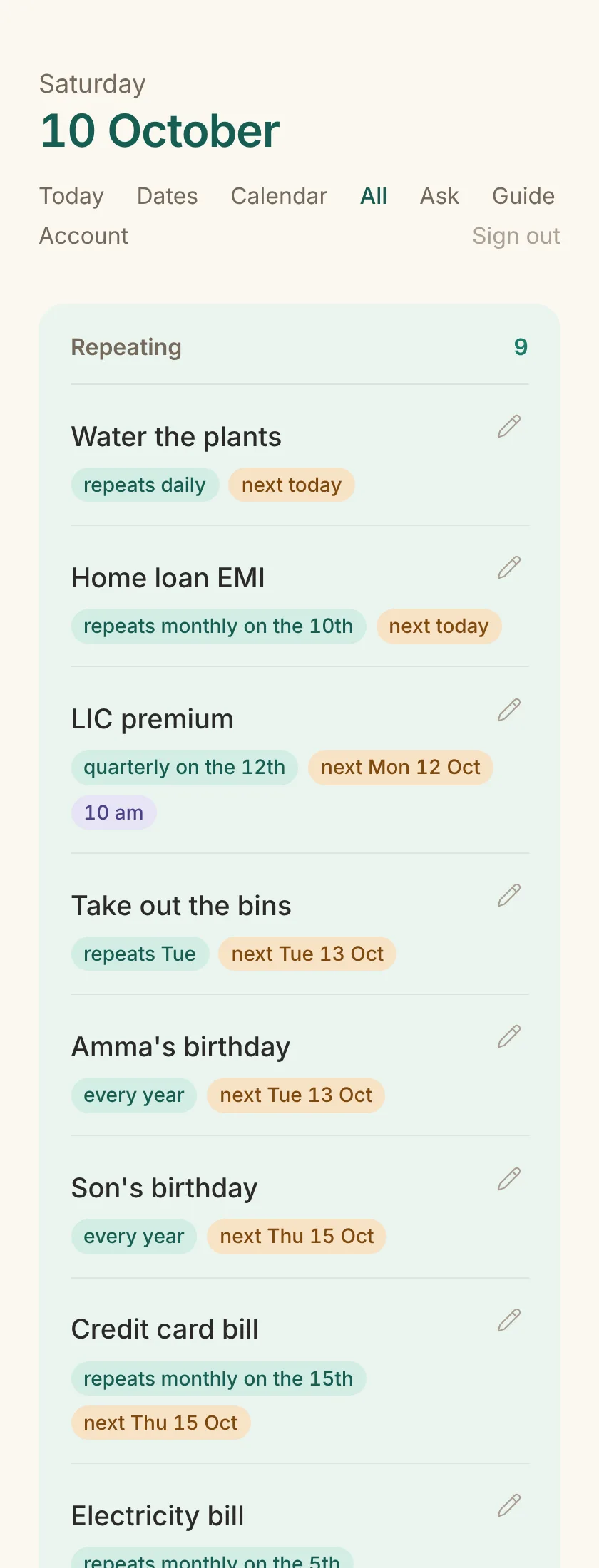
  • “3 days in a row” for a daily chore, “4 weeks running” for a weekly one.
  • Someday items wait here until you give them a day with the pencil or by renaming.
The All page listing repeating chores with streaks, one-off chores and someday items

Lists and sharing

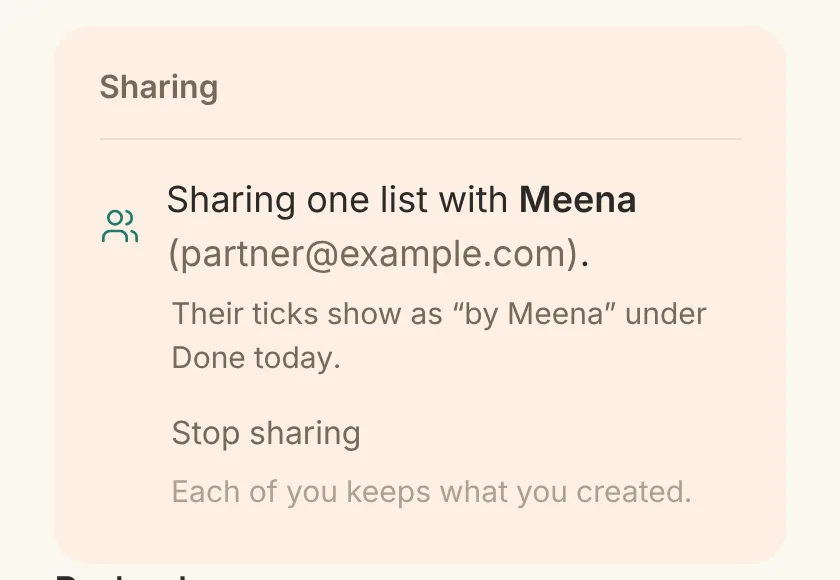
Every entry is on a list. Your own list is private. Make another, invite a friend to it, and you both see and change what is on that list and nothing else.
  1. On Account, under Lists, make a list such as “Household” or “Trip”.
  2. Type a friend's email under it and tap Invite. They need an account here first.
  3. They see the invitation at the top of their Today and on their Account page, and accept.
  4. When adding, pick the list from the small “in …” chooser under the box. To move an entry later, tap the folder icon on its row and pick the list; on the All page, “Select entries to move” moves many at once.
  • Any number of friends can be on a list; each of you can add and tick. An entry can be changed or deleted only by whoever created it or by the list's owner, and moved to another list only by the owner.
  • A tick by someone else is marked “by their name” under Done today.
  • Coming back to the app refreshes it, so their changes are there when you look.
  • Leave a list, or remove someone from yours, from Account. Delete a list and its entries move to your own.
The Account page's Lists panel: a private list, a shared list with a member, and an invite box
Account → Lists. Entries on a shared list carry its name on Today.

Sticky notes

Small coloured notes for the things an entry's name does not hold: the brand of milk, the plumber's quote, the gift idea. They live on the Notes page and, stuck to an entry, under its pencil.

  • On a shared list, “Whose job” under the pencil gives an entry to someone on the list, or write it in: “Buy milk for Meena”. The row shows the name, and Today can show only yours.
  • Open an entry's pencil and write in the note at the bottom of the form; pick one of six paper colours. The row then shows “1 note”. Notes without a home go on the Notes page.
  • A phone number in a note becomes a call, a number after “WhatsApp:” opens a chat, and a Google Maps link, a pair of coordinates or what follows “Location:” opens in Google Maps. The phone and chat buttons under the note start one for you; the pin button adds a place of its own (an address or a Maps link, with a name to show if you like), up to five on one note, each opening in Maps by itself. Pasting a Maps link into a note does the same. The same goes for an entry's name: a web address, a number or a place in it is tappable on every page.
  • Write a note the way you would in a letter: the buttons above it make words bold, italic, underlined, struck through or highlighted, add a heading, a bulleted or numbered list, a checklist or a quote, and undo a slip. Enter starts a new line, and Ctrl+Enter (⌘+Enter on a Mac) sticks or saves it. Tick a checklist right on the note.
  • Put pictures on a note: paste a screenshot straight in, drop a picture on it, or press the picture button to choose one or take a photo. Up to six on a note, and a note can be just pictures. Tap one to see it whole. Only the people who can see the note can see its pictures, and nothing of where a photo was taken is kept.
  • A task can carry pictures too: paste a screenshot anywhere in the task, or press Add a picture in its form. They show under the task's name for everyone on the list. On a shared list, the notes button on a task opens its sticky notes and pictures even when the task is someone else's, and you can add your own there.
  • Links stand out as coloured chips: a place, a phone number, a WhatsApp number, a web page and an email each in its own colour. Choose some words and press the link button to make them a link, or paste a link and the note asks what it should show, such as “Google”, instead of the whole address.
  • A note is yours for good. Delete the entry, or the whole list, and the note stays with you, remembering where it was stuck.
  • Pin a note and it sits at the top of the Notes page and in a strip above Today, where the eye lands first.
  • Share makes a link anyone can read without an account, then offers WhatsApp, your phone's own share sheet, or copying the link or the text. Stop sharing and the link dies at once.
  • On a shared list, notes stuck to its entries are seen by everyone on the list, with the writer's name, and anyone on the list can stick their own; only the writer can change or remove one. A pinned note on a shared list is pinned for all of you.
  • “Make an entry” starts a new entry from the note's first line, for when a note turns out to be a job after all.

A morning note

Off unless you ask. Under Settings on the Account page, switch on the daily reminder, pick a time, and choose how it reaches you.

  • Push to this device shows a notification on the phone or computer you switch it on from, even with the app closed. On an iPhone, add the app to the Home Screen first. Each device asks on its own.
  • Email sends the same note to your address. Either, or both.
  • The note says what is still open, what is due today with its time, and the birthdays, bills and renewals inside their reminder window, with how far away they are. On a day with nothing to say, nothing is sent.
  • “Send a test now” shows you the note straight away.

On your phone

It is a website that installs like an app: full screen, on the home screen, and the Today list readable even without a connection.

Install

  • Android, Chrome: the ⋮ menu → “Add to Home screen” or “Install app”.
  • iPhone, Safari: the Share button → “Add to Home Screen”.

Finding your way

  • On a phone, Today, Dates, Calendar and Notes sit along the bottom, within reach of a thumb. More holds All, Ask, this guide, Account and Sign out. On a wider screen the same places are the menu under the date.

Light or dark

  • Under Settings on the Account page, Appearance offers System, Light and Dark. System follows your phone, so the app turns dark with it at night. The choice is kept on the device.

Swipe a row

  • Switched on under Settings on the Account page, a row slides: to the right to tick it done, to the left to delete it. The undo bar appears either way, and a short slide just springs back. It is off to begin with, so nothing moves until you ask for it.

Signing in

  • Email and password, once per device; you stay signed in for three months.
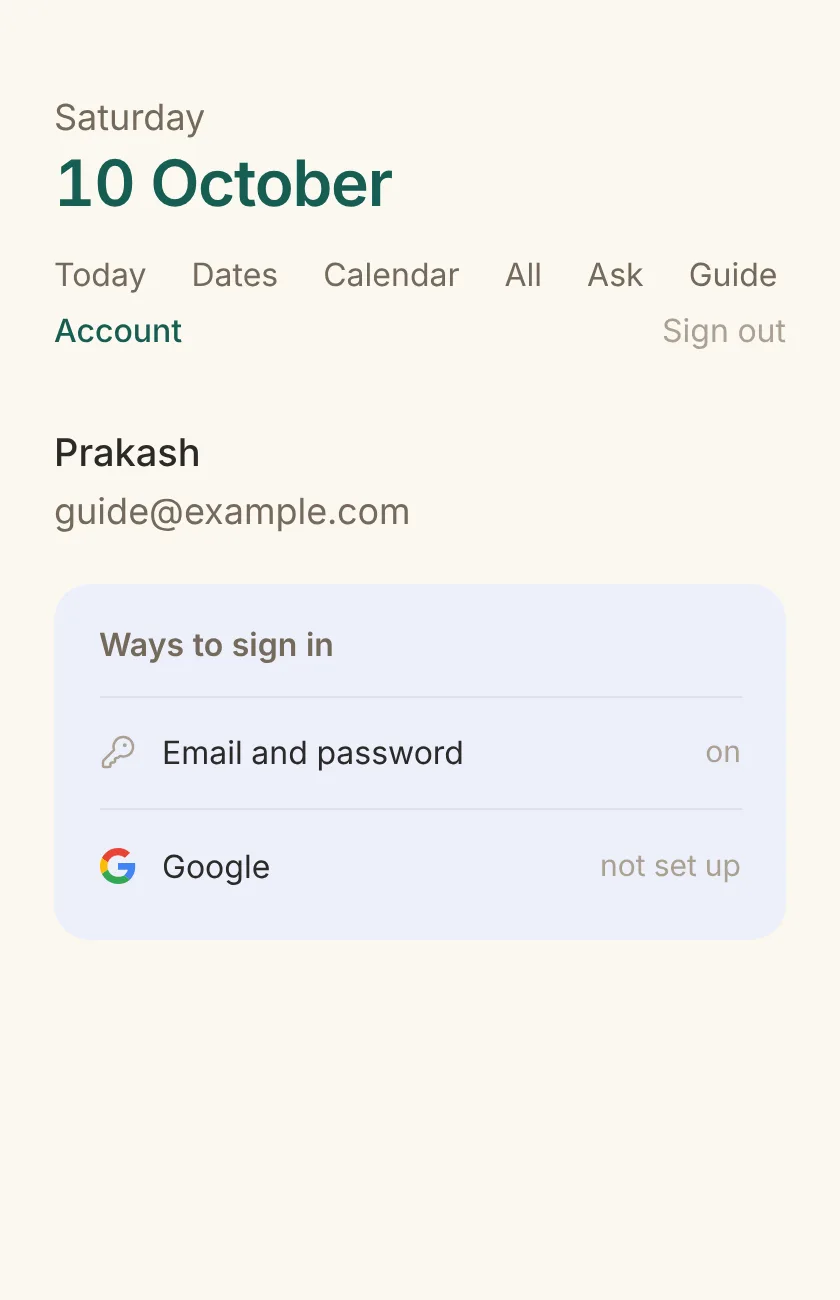
  • Where Google sign-in is switched on, “Continue with Google” works too. Sign in with your email and password, open Account, and tie any Google account to it: its email need not be the one you sign in with. After that either way in reaches the same list, Account shows which Google account is tied, and its profile picture appears at the top of every page.
  • Days follow your phone's time zone, so “today” is your today wherever you are.
The Account page: name and email, a Ways to sign in panel listing Email and password and Google
Account shows the ways in. A Google account can be tied or removed here.

Everything here runs on your own server. Voice uses the browser's recogniser; Ask works from your entries alone.